The SmallPDF Tools hub organizes every public PDF workflow into clear categories, including compression, conversion, editing, signing, security, AI tools, and mobile scanning.
smallpdf tools hub
All PDF tools in one clean workspace
Find the right SmallPDF Tools workflow for compressing, converting, merging, splitting, editing, signing, OCR, AI document work, and mobile scanning. Each tool uses the same clean header, footer, privacy-first upload foundation, and readable mobile layout.
Popular PDF tools
Start with the most common PDF tasks
These workflows cover the jobs users search for most often: reduce file size, convert documents, combine pages, split files, edit PDFs, sign forms, and run OCR on scanned pages.
Compress PDF
Reduce PDF file size while keeping documents clear and shareable.
PDF Converter
Convert PDF files to and from popular document, image, and office formats.
Merge PDF
Combine multiple PDF files into one ordered document.
Split PDF
Split a PDF into separate files or extract selected page ranges.
PDF to Word
Convert PDFs into editable Word documents with layout preserved.
Word to PDF
Convert DOC and DOCX files into clean PDF documents.
Edit PDF
Add text, images, shapes, highlights, and notes to PDF files.
Sign PDF
Add an electronic signature to PDF documents online.
OCR PDF
Turn scanned PDFs into searchable text using optical character recognition.
Core PDF Tools
Core PDF Tools
Compress, convert, merge, split, organize, and repair everyday PDF workflows. Choose a tool below to open a focused page with upload guidance, SEO content, schema, privacy notes, and related workflow links.
Compress PDF
Reduce PDF file size while keeping documents clear and shareable.
PDF Converter
Convert PDF files to and from popular document, image, and office formats.
Merge PDF
Combine multiple PDF files into one ordered document.
Split PDF
Split a PDF into separate files or extract selected page ranges.
Organize PDF
Reorder, insert, rotate, and remove pages from a PDF document.
Rotate PDF
Rotate one page or every page in a PDF to the correct direction.
Delete PDF Pages
Remove blank, duplicate, or unwanted pages from PDF files.
Extract PDF Pages
Save selected PDF pages as a new, smaller document.
OCR PDF
Turn scanned PDFs into searchable text using optical character recognition.
Convert From PDF
Convert From PDF
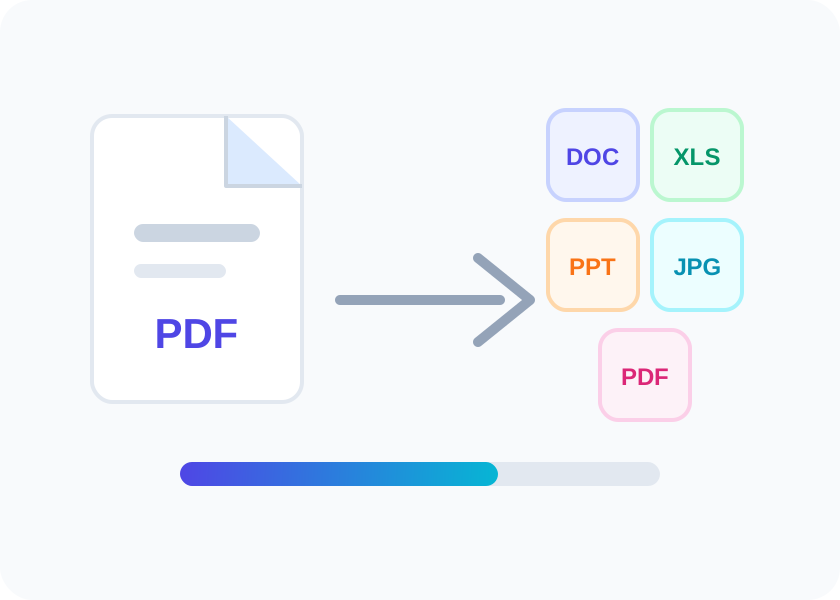
Turn PDF files into editable Word, Excel, PowerPoint, and image formats. Choose a tool below to open a focused page with upload guidance, SEO content, schema, privacy notes, and related workflow links.
Convert To PDF
Convert To PDF
Create clean PDFs from office documents, images, web pages, and text files. Choose a tool below to open a focused page with upload guidance, SEO content, schema, privacy notes, and related workflow links.
Word to PDF
Convert DOC and DOCX files into clean PDF documents.
Excel to PDF
Save spreadsheets as professional PDF files for sharing.
PPT to PDF
Convert PowerPoint slides into a polished PDF deck.
JPG to PDF
Turn JPG images into a single PDF or separate PDF files.
HTML to PDF
Convert web pages or HTML files into printable PDF documents.
TXT to PDF
Convert plain text files into simple, readable PDF files.
RTF to PDF
Convert rich text documents into PDF format online.
ODT to PDF
Convert OpenDocument text files into PDF documents.
Edit and View
Edit and View
Read, edit, annotate, crop, redact, watermark, and number PDF pages online. Choose a tool below to open a focused page with upload guidance, SEO content, schema, privacy notes, and related workflow links.
Edit PDF
Add text, images, shapes, highlights, and notes to PDF files.
PDF Annotator
Highlight, underline, draw, and add comments to PDFs.
PDF Form Filler
Fill PDF forms online without printing or scanning.
PDF Reader
Open, view, search, and read PDF documents in your browser.
Crop PDF
Trim margins and resize visible page areas in a PDF.
Redact PDF
Permanently cover sensitive text or areas in PDF documents.
Watermark PDF
Add text or image watermarks to every PDF page.
Number Pages
Add page numbers to PDFs with flexible placement options.
Security and Sign
Security and Sign
Sign, protect, unlock, and flatten PDFs when you have permission to modify them. Choose a tool below to open a focused page with upload guidance, SEO content, schema, privacy notes, and related workflow links.
AI PDF Tools
AI PDF Tools
Summarize, translate, chat with, and generate questions from PDF documents. Choose a tool below to open a focused page with upload guidance, SEO content, schema, privacy notes, and related workflow links.
AI PDF Assistant
Use AI to inspect, summarize, and work through PDF content faster.
Chat with PDF
Ask questions about a PDF and get answers from the document.
PDF Summarizer
Create short summaries from long PDF reports, guides, and papers.
Translate PDF
Translate PDF content into another language while keeping context clear.
AI Question Generator
Generate quiz, study, and review questions from PDF material.
Mobile and Scanner
Mobile and Scanner
Scan paper documents and turn phone captures into polished PDF files. Choose a tool below to open a focused page with upload guidance, SEO content, schema, privacy notes, and related workflow links.
How to choose
Pick the PDF tool that matches the job
Start with the file problem, not the file name. If the PDF is too large, use Compress PDF. If pages are in the wrong order, use Organize PDF. If several files belong together, use Merge PDF. If you need editable text, try PDF to Word or OCR for scanned files.
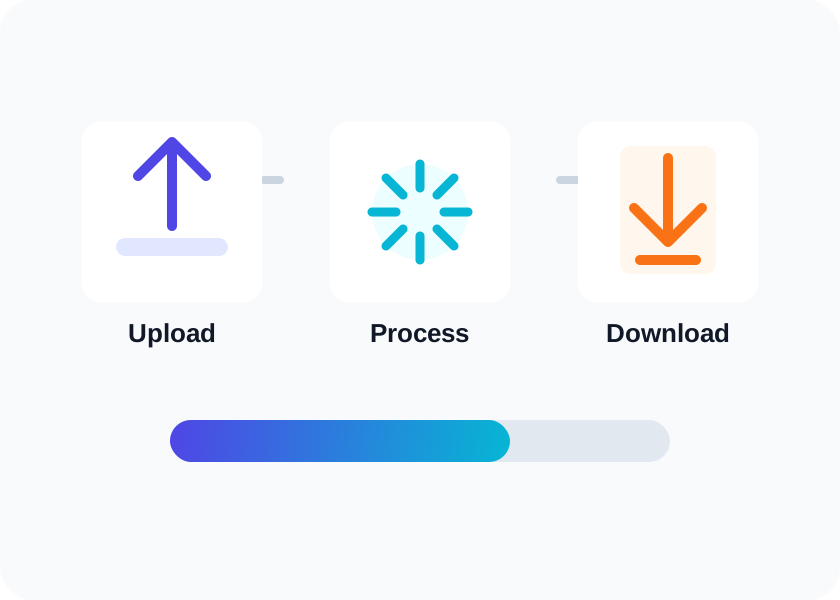
Each page follows the same structure so users do not need to relearn the interface. You get a direct upload area, accepted file types, tool-specific options, privacy notes, related tools, FAQ schema, breadcrumb schema, and clean internal links.
Some workflows need production server engines such as Ghostscript, qpdf, LibreOffice, OCR, or AI APIs. When an engine is not configured, the page shows a setup-required state instead of pretending the document was processed.
FAQ
PDF Tools Hub FAQ
Yes. Tool pages use clean URLs such as /pdf-converter, /merge-pdf, and /sign-pdf. Direct .php URLs redirect to the clean route.
The shared tool foundation includes file type checks, file size limits, CSRF protection, session rate limits, safe filenames, private upload folders, and cleanup rules.
Some PDF workflows need server binaries, document conversion engines, OCR tools, or AI APIs. The page UI and upload checks are active, and final processing should be enabled after the required engine is configured.
Ready when you are
Choose a PDF tool and start
Open the workflow that matches your document task and use the same clean upload experience across the platform.