What this tool is for
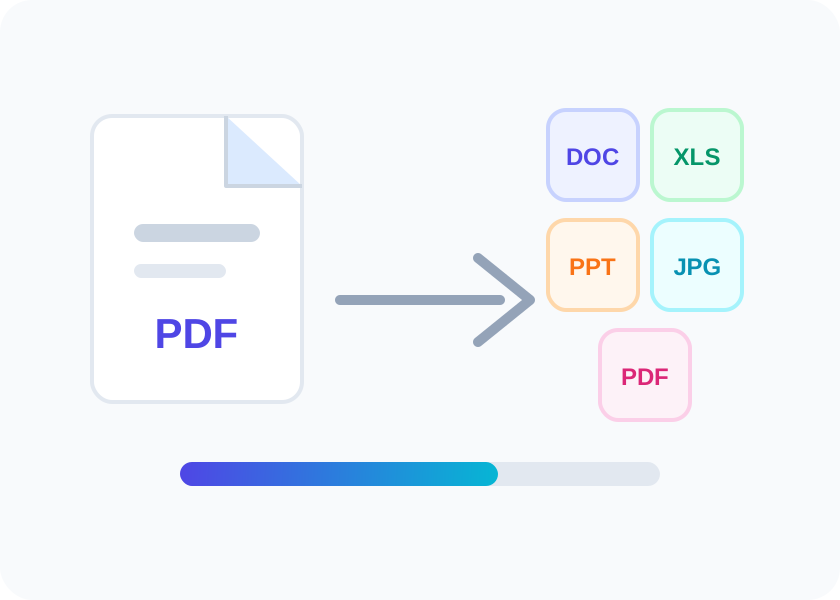
PDF to Word is designed for a focused PDF task: convert PDFs into editable Word documents with layout preserved. It is useful when you want the job done from a browser without searching through a large desktop PDF editor or sending the file through a confusing multi-step menu.
The page is also written for people searching for smallpdf PDF to Word who need a practical answer before they upload a document. You can see accepted file types, privacy notes, related tools, and the expected output before you commit to the workflow.
Who should use it
PDF to Word works well for students, assistants, accountants, researchers, and office teams who need editable content from a PDF but still want to preserve the source file for reference. The layout keeps the main upload action close to the top, then supports it with guidance for file quality, mobile use, and the next PDF step. That makes it easier to finish one task and move on.
If your document includes private business data, client records, contracts, signatures, invoices, academic material, or scanned pages, review the privacy notice before processing. The site uses temporary storage, randomized filenames, CSRF checks, and provider-based processing so the workflow can be deployed on shared hosting without heavy local binaries.
How to use it
Start by choosing the file type listed in the upload box. For tools that need more than one file, such as merge or image-to-PDF workflows, select all files in the order you want them processed. For page tools, enter page ranges only when you want to affect part of the document.
After upload, the PHP layer checks the file extension, detected MIME type, file size, CSRF token, and session rate limit. When production API keys are configured, the stored temporary file is sent to the hosted provider, the processed result is downloaded back to the private processed folder, and a short-lived download link is created for your session.
How to get better output
PDF conversion works best when the source PDF has selectable text, clean tables, and clear page structure. Scanned pages may require OCR first, and complex brochures can need manual review after conversion.
After using PDF to Word, compare the first page, a middle page, and the last page with the original PDF. Check headings, tables, footnotes, images, and page breaks before sending the converted file.
Mobile and browser workflow
The interface is built mobile-first, so the upload area, buttons, tool options, and related links are easy to tap on a small screen. The same shared header and footer load on every page, which helps users move between PDF to Word, the tools hub, tutorials, policies, and contact information without getting lost.
On slow connections, keep the browser tab open until the result appears. Large PDFs, scanned documents, image-heavy files, and Office conversions can take longer than plain text PDFs. For production, the API timeout and upload limit can be adjusted in the configuration file to match your hosting plan and provider limits.
Privacy, permission, and limits
Only upload files you own or have permission to process. Security tools do not support password cracking, and unlock workflows require the correct password from the document owner. AI tools can help summarize, translate, and question a document, but you should verify important output against the original PDF.
Temporary uploads and processed files are blocked from direct public access by Apache rules and are cleaned after the configured retention period. The public page stays indexable because it contains useful instructions and a real processing path, while upload, result, and download URLs stay out of the sitemap and are blocked from crawling.
What happens after processing
A finished result should match the goal of the page: an editable Word document that should be checked for layout and font differences Download the file, open it once, and check the pages, text, images, tables, form fields, or signatures before sending it to another person. If the result needs another step, use the related tools section instead of starting over from the homepage.
Production processing for this page uses CloudConvert hosted conversion API. If an API key is missing, the site shows a clear setup message instead of pretending the conversion worked. That keeps the user experience honest and helps avoid thin pages or fake tool behavior during AdSense and search review.