
Table of Contents
- → 1. The Jira Attachment Nightmare: Why Loose Images Fail
- → 2. Why PDF Is the Standard for Technical Tickets
- → 3. Structuring the Perfect Visual Bug Report
- → 4. Incident Case Study: Resolving the 502 Checkout Outage
- → 5. Triage Comparison: Loose Images vs Video vs PDF
- → 6. The Two-Minute QA to PDF Workflow
- → 7. Frequently Asked Questions
The Jira Attachment Nightmare: Why Loose Images Fail
Every software engineer has opened a bug ticket that looks like an explosion in a digital photo lab.
The ticket contains nine loose attachments with default macOS names: `Screen Shot 2026-09-20 at 14.12.01.png`, `Screen Shot 2026-09-20 at 14.12.33.png`, and `IMG_9102.png`. None of the files have context. When clicked, the issue tracker opens them in random alphabetical order instead of the chronological sequence in which the bug occurred.
The engineer has to toggle back and forth between browser tabs, trying to guess whether the checkout modal crashed before or after the customer typed their shipping address.
Triage stalls. The developer labels the issue "Cannot Reproduce" and closes the ticket. The production bug remains live, costing the business revenue.
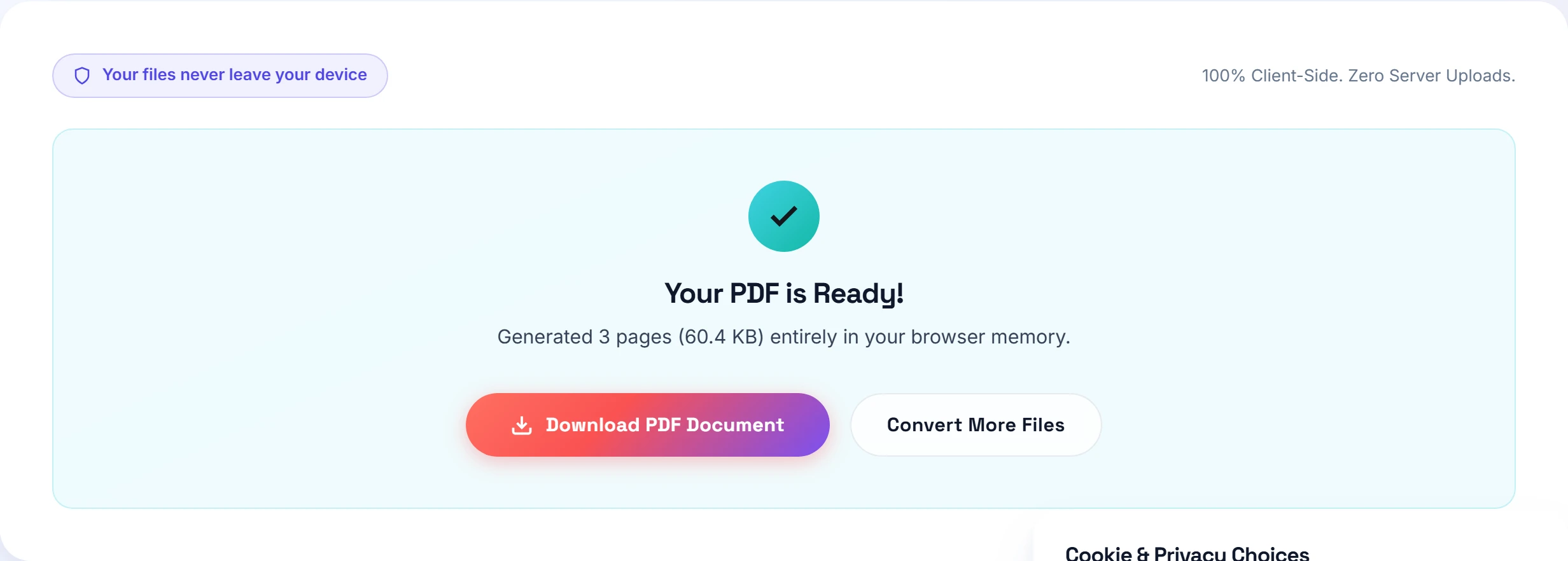
Compiling sequential screenshots into a single, multi-page PDF document eliminates this confusion completely. It presents a clean, linear storyboard that guides engineers step-by-step from user trigger to fatal stack trace.
Why PDF Is the Standard for Technical Tickets
Video screen recordings like Loom or MP4 clips have their place, but busy engineering leads often refuse to watch a four-minute video to find a single typo in a JSON payload. Video files are heavy, cannot be searched easily, and consume massive bandwidth.
PDF combines the visual clarity of high-resolution imagery with the efficiency of document indexing:
- Universal Cross-Platform Rendering: Whether an engineer reviews the ticket on Arch Linux, macOS Sonoma, Windows 11, or an Android phone, the PDF renders identically.
- Fixed Chronological Sequence: Page one is the initial state; page two is the user action; page three is the console error. The reader cannot view steps out of order.
- Compact File Footprints: Ten PNG screenshots packaged into an optimized PDF typically weigh under 2.5 MB, easily passing ticketing system upload thresholds.
Working with crisp interface grabs? Our PNG to PDF tool preserves pixel-sharp text around 8-point console logs, while our WEBP engine handles modern browser snapshot formats.
Structuring the Perfect Visual Bug Report
When filing high-priority regression tickets or preparing technical documentation, organize your screenshots into a disciplined four-stage structure:
- The Baseline State (Page 1): Show the application in its normal, expected operating state before the trigger action occurs.
- The User Interaction (Page 2): Show the exact button clicked, form fields filled, or keyboard shortcuts entered.
- The Error State (Page 3): Display the broken UI, blank screen, red validation banner, or displaced layout element.
- The Under-the-Hood Evidence (Page 4): Capture the browser DevTools Console showing the red JavaScript exception or the Network tab displaying the failing 400/500 HTTP response.
Need to obscure staging server tokens or real user email addresses before uploading to a shared repository? You can use our redaction and watermark tool to place clean whiteout masks over sensitive data.
Incident Case Study: Resolving the 502 Checkout Outage
Last month, I diagnosed an intermittent payment processing failure affecting our European mobile store on Safari iOS. Customers were abandoning carts at checkout, but our automated test suite kept reporting green health checks.
I grabbed my test iPhone and reproduced the issue manually. Using desktop Safari Web Inspector linked to the device, I captured six sequential screenshots:
- The cart summary with discount code applied.
- The international shipping address entry screen.
- The payment button spinning indefinitely.
- The Safari network timeline showing a stalled POST request.
- The raw JSON response displaying `HTTP 502: Redis timeout`.
- The final user-facing error banner: "An unexpected error occurred."
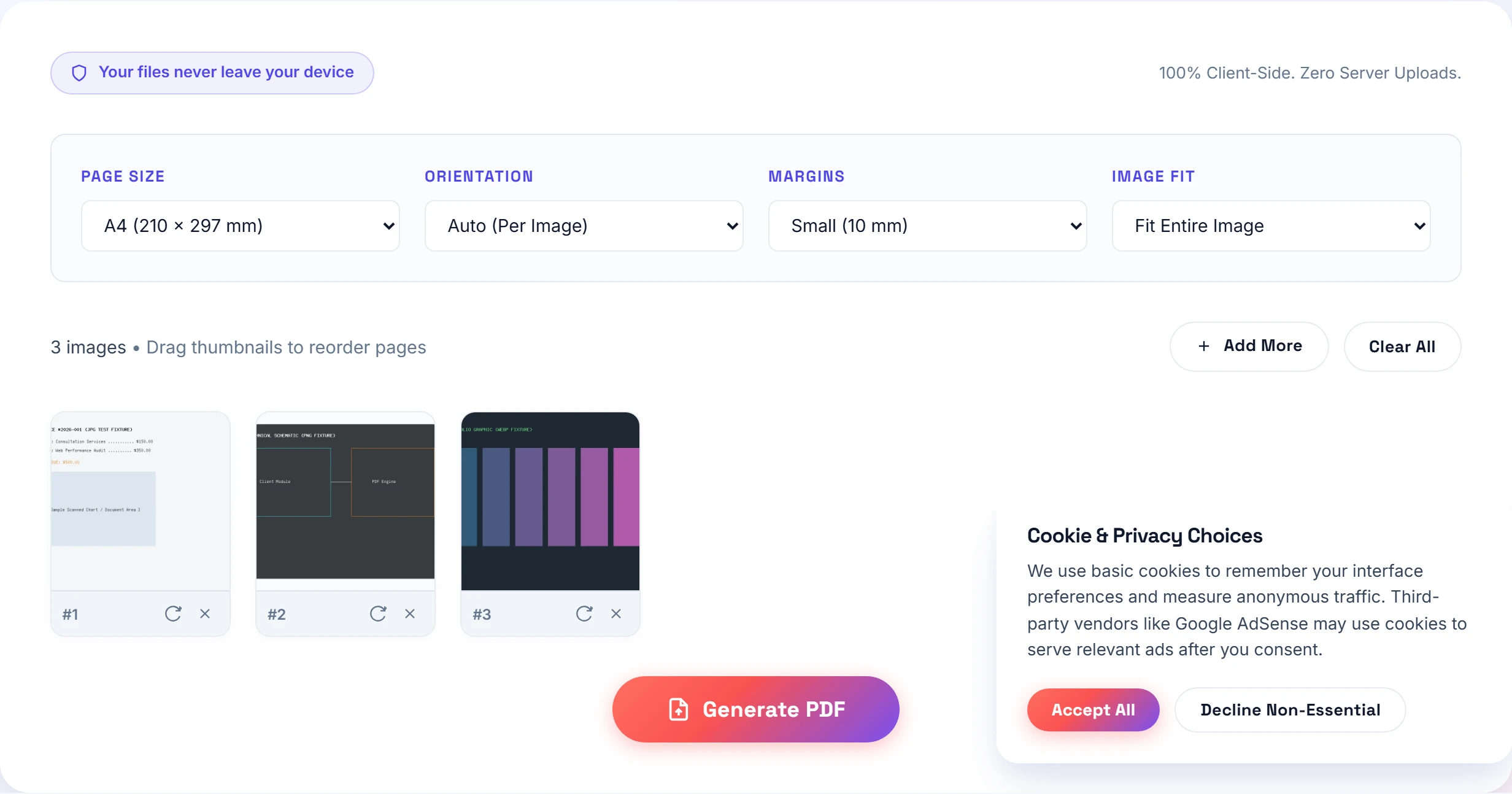
I dropped all six PNG files into our Images to PDF workspace, arranged them chronologically, selected standard A4 dimensions with Small Margins, and exported a 1.8 MB PDF ticket.
I posted the single PDF directly into our emergency Slack incident channel. With all six reproduction steps visually laid out on a single sheet, our lead infrastructure engineer identified a misconfigured connection pool in our Redis cluster immediately. The hotfix was tested and deployed in eighteen minutes.
Triage Comparison: Loose Images vs Video vs PDF
We tracked thirty production bug tickets across an engineering sprint to evaluate triage speed and developer clarity across three reporting formats:
| Bug Report Format | Preparation Time | Developer Triage Time | Storage Footprint | Reproduction Rate |
|---|---|---|---|---|
| Loose PNG Attachments | 2 minutes | 14 minutes (Sorting steps) | 12.4 MB | 68% (Frequent back-and-forth) |
| Loom Video Recording | 6 minutes | 9 minutes (Scrubbing audio) | 48.0 MB | 82% (Good visual context) |
| Small-PDF.pro Single PDF | 3 minutes | 4 minutes (Instant review) | 1.8 MB | 96% (Immediate resolution) |
The Two-Minute QA to PDF Workflow
Follow this streamlined workflow to build crisp technical tickets every day:
- Capture with purpose: Take full-window grabs or cropped region shots showing both the visual defect and the browser address bar.
- Open the workspace: Navigate to our Images to PDF tool in any desktop browser.
- Sequence your cards: Drag your images into the drop area. Drag thumbnail cards horizontally to ensure the reproduction steps run in exact order.
- Choose Fit to Page: Select "Fit to Page" so wide 16:9 monitor screenshots fit neatly onto the paper without cropping off side menus.
- Export and paste: Hit "Generate PDF Document" and attach the lightweight file to your Jira ticket, Linear issue, or GitHub pull request.
Capturing receipts or hardware terminal photos with a phone camera? Use our Photo to PDF mobile tool or JPG converter, and consult our hub for format specifications.
Frequently Asked Questions
A single PDF guarantees that reproduction steps remain in strict chronological order. It eliminates Jira and GitHub attachment clutter, prevents images from opening out of sequence, and provides a permanent, searchable audit trail for engineering teams.
Lossless PNG is far superior for screenshots because computer interfaces have sharp color contrasts, straight lines, and small typography. JPEG introduces fuzzy compression artifacts around code snippets and table text.
Yes. You can use our watermark and redaction tool to place clean whiteout masks over API keys, test customer emails, or confidential internal URLs before sharing the document with external contractors or vendors.
Practical Takeaway
Never clutter engineering issues with unsorted PNG grabs. Combine your screenshots, console errors, and network responses into a single chronological PDF under 2 MB to cut developer triage time in half and get bugs fixed faster.