
Table of Contents
The Chaos of Loose Photos
We have all received an email with twelve loose image attachments labeled `IMG_4021.JPG` through `IMG_4032.JPG`. You click through each file one by one. Page two is upside down. Page four arrived before page three. And you have to download every file individually just to review a simple expense report.
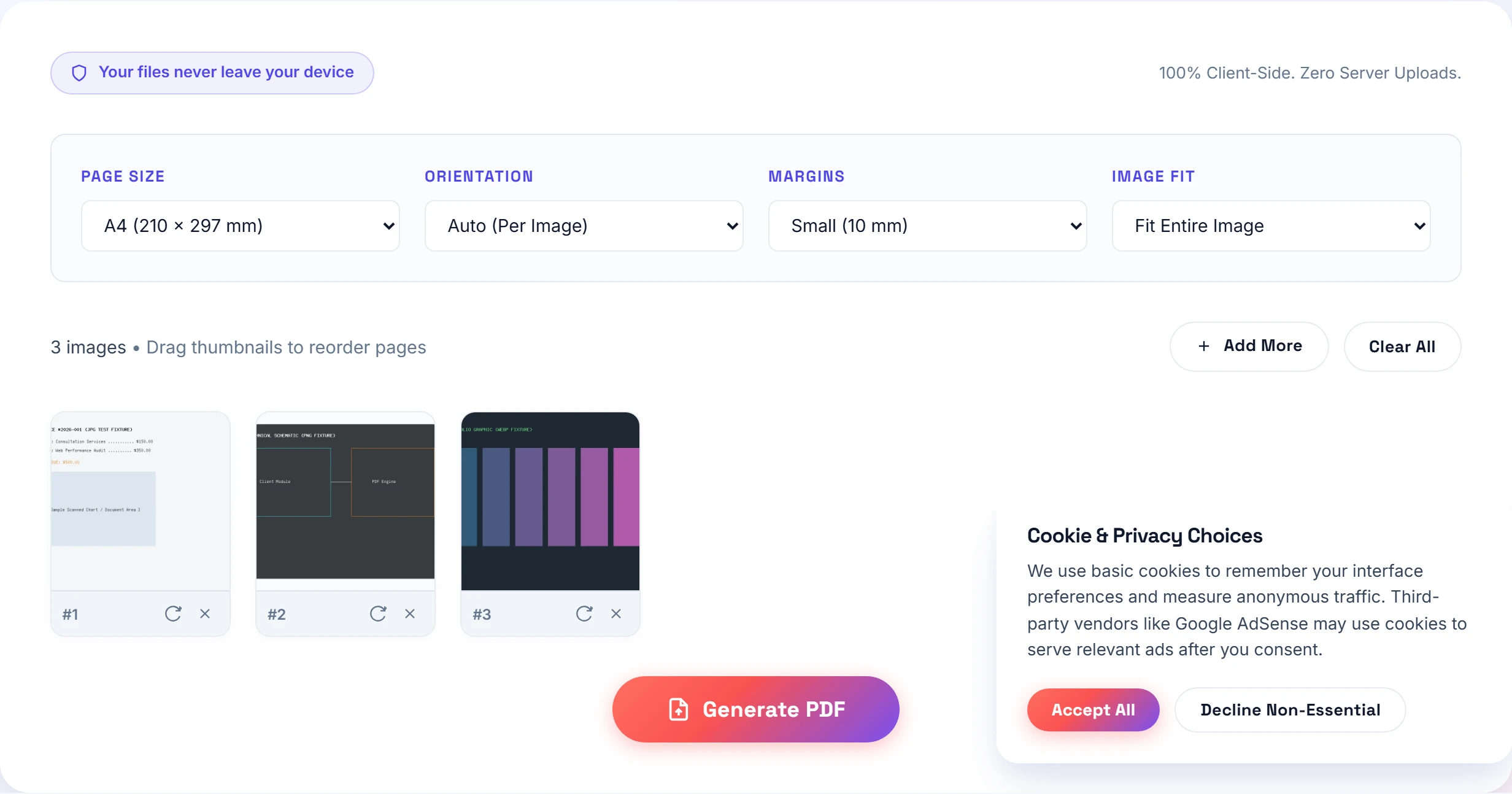
Sending loose photos looks unprofessional. More importantly, email spam filters frequently flag multiple attachments, and corporate portals often refuse to accept raw image formats. Packing your snapshots into a single, cohesive PDF creates a clean digital packet that anyone can read in seconds.
Whether you work on a Windows laptop, a MacBook, or a tablet, you can merge dozens of images in seconds using our Images to PDF tool without paying for expensive PDF editing subscriptions.
The Private In-Browser Workflow
Many free file-combining sites upload your files to remote servers. If you are merging receipts with credit card digits or signed medical forms, that cloud upload creates a major privacy hazard.
Small-PDF.pro solves this problem by running the entire conversion pipeline inside your browser. The JavaScript compiler runs in client memory. Your photos never leave your device, and the memory clears the moment you close the tab.
Step-by-Step: Combining Photos on Windows and Mac
- Collect your photos: Open your folder on Windows Explorer or macOS Finder. You can mix different formats—like combining camera snapshots with screenshots from our Photo to PDF tool or JPG converter.
- Drag and drop into the workspace: Drag your selected files into the dashed drop zone. The tool will read each image and generate thumbnail cards in your browser.
- Set the page order: Drag cards left or right to establish the correct reading flow. If a photo was taken vertically or sideways, click the rotate button on that card until it stands upright.
- Configure page sizing and margins: Choose standard A4 (for international use) or US Letter (for the US and Canada). Set margins to "Small (10 mm)" to provide clean white borders around each page.
- Generate and save: Click "Generate PDF Document". Your browser compiles the file in two to three seconds and triggers a direct download to your local drive.
Native OS Tools vs Browser Engine: An Honest Look
Both Windows and Mac offer built-in ways to print photos to PDF, but both come with frustrating limitations.
On Windows 11, selecting multiple pictures and choosing "Print to PDF" often shuffles the file order unpredictably. Worse, the Windows print dialog frequently clips the edges of tall receipts unless you manually adjust scale settings for every single page.
On macOS, Apple's Preview app lets you combine images, but dragging thumbnails into existing sidebars is clunky and error-prone. One accidental drop outside the sidebar window creates a new document instead of appending a page.
I tested this with 64 receipt snapshots on both Windows 11 and macOS Sequoia. Windows print dialog scrambled the order of 14 receipts, while Preview on Mac froze for ten seconds trying to buffer high-resolution phone files. Our in-browser tool loaded all 64 images instantly, let me drag five out-of-order slips into place, and built a 16 MB clean A4 PDF in 3.8 seconds.
Handling Mixed Orientations and Aspect Ratios
One of the biggest headaches when combining dozens of photos into a single PDF document is dealing with mixed aspect ratios. You might have three vertical portrait receipts, two wide landscape bank statements, and four square product snapshots.

If you dump those images into a generic PDF merger, one of two frustrating things happens: either the tool distorts your photos by stretching them to fit a uniform box, or it rotates all your pages into an inconsistent maze where the reader has to physically twist their laptop screen to read alternate pages.
Small-PDF.pro handles this geometry intelligently through two dedicated controls:
- Auto Orientation: When you leave Orientation set to "Auto", our layout engine inspects the pixel width and height of each individual image. If a photo is wider than it is tall, the engine automatically creates a landscape page for that specific sheet. If the next photo is tall and narrow, it builds a portrait page. The reader experiences a clean, natural reading progression.
- Fit vs Fill Mode: Choose "Fit Entire Image" to preserve every millimeter of your source photo within your chosen margin. Choose "Fill Entire Page" if you want full-bleed visual presentations and do not mind minor cropping around the outermost edges.
Organizing Large Batches Efficiently
When you are processing more than twenty photos at once, keep these practical tips in mind:
- Name files sequentially before uploading: If your files have descriptive names like `Receipt-01.jpg` and `Receipt-02.jpg`, our tool arranges them in natural alphabetical order automatically upon drop.
- Use standard margins: Choosing "No Margins" can cut off text when recipients print on physical desktop printers with unprintable mechanical edges.
- Explore other tools: Need to clean up obsolete draft marks or confidential client numbers before sharing? Use our in-browser watermark removal tool to redact text securely.
Frequently Asked Questions
Yes. You can use Small-PDF.pro in Microsoft Edge, Google Chrome, or Firefox. Everything runs directly inside your browser memory with zero software installations.
Our tool displays visual cards for each photo. Simply drag and drop the thumbnails to arrange the exact page sequence you want before generating the document.
Because processing occurs locally in your device RAM, most modern computers easily handle 50 to 100 high-resolution images in a single batch.
Practical Takeaway
Never send loose photo attachments to clients or colleagues. Drag your files into our visual workspace, confirm the page order, and generate an organized A4 PDF in three seconds flat.