
Table of Contents
- → 1. The Windows HEIC Crisis: Why PC Users Struggle
- → 2. What Is HEIC and Why Apple Chose It
- → 3. Why Microsoft Doesn't Include Free Support
- → 4. How WebAssembly Solves the Problem in Your Browser
- → 5. Step-by-Step: Converting iPhone Photos on PC
- → 6. Why Changing iPhone Camera Settings Isn't Enough
- → 7. Frequently Asked Questions
The Windows HEIC Crisis: Why PC Users Struggle
If you use a Windows PC at work or home, you have almost certainly encountered this baffling error message: "The HEIF Image Extension is required to display this file."
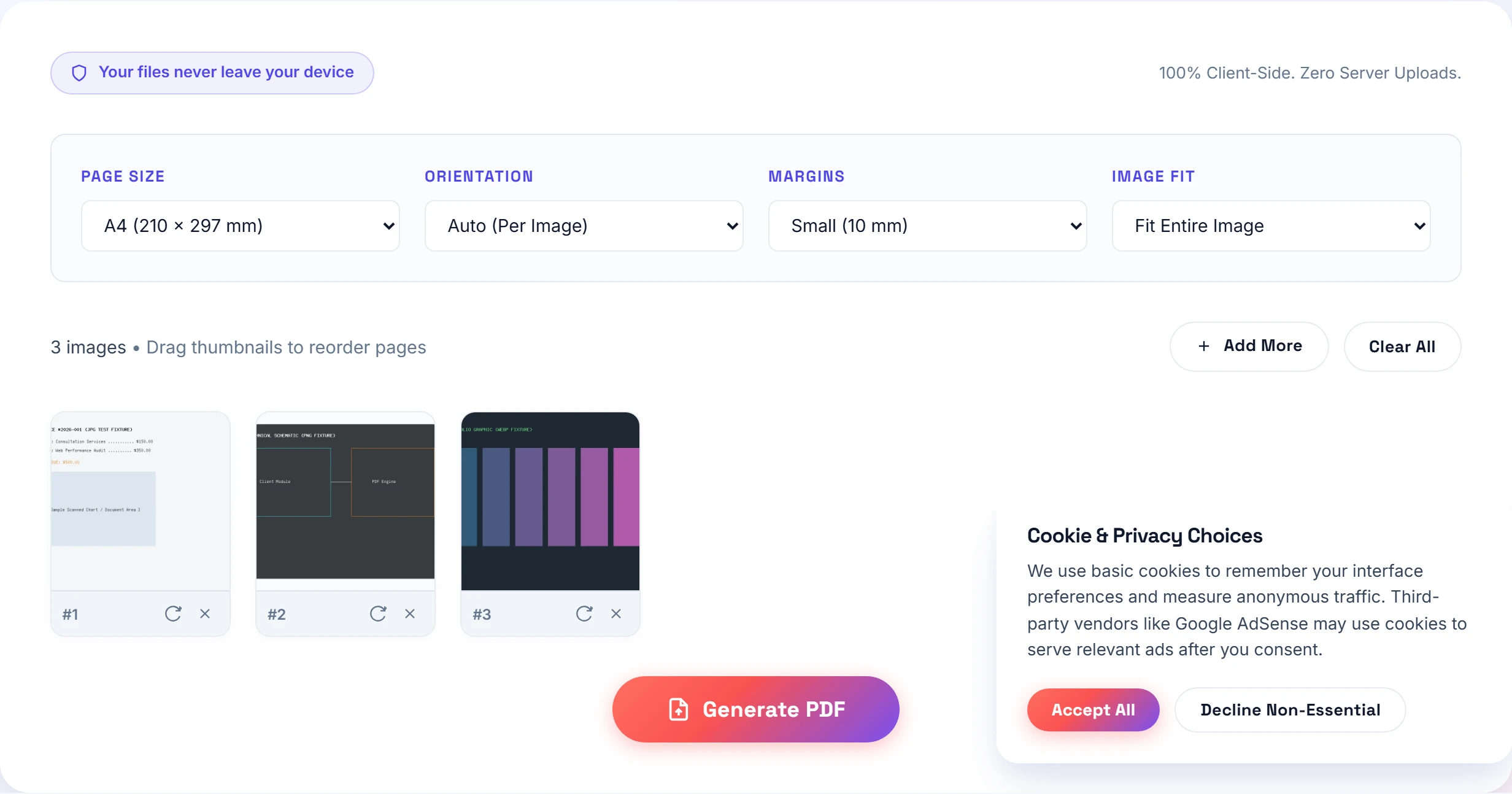

Your coworker, client, or spouse took photos on their iPhone and emailed them to you. When you double-click the files in Windows Explorer, the Photos app fails to open them. Instead, Windows directs you to a Microsoft Store page asking you to pay \$0.99 for an HEVC video extension!
In corporate office environments, IT policies lock down the Microsoft Store entirely. Employees cannot buy the 99-cent extension even if they want to. As a result, millions of office workers find themselves completely unable to view job site photos, insurance claims, or signed receipts sent by iPhone users.
Converting those incoming photos into a standard PDF solves this dilemma permanently. You bypass Windows codec limitations and create documents that open on every computer without software headaches.
What Is HEIC and Why Apple Chose It
Apple switched from standard JPEG to High Efficiency Image Container (HEIC) with the release of iOS 11 in 2017.
From an engineering standpoint, Apple made the right decision for their hardware ecosystem. HEIC utilizes the H.265 / HEVC compression standard. It offers two massive advantages:
- 50% smaller file sizes: A 12-megapixel photograph that weighs 4 MB in JPG format compresses down to just 1.8 MB in HEIC at identical visual sharpness.
- 10-bit and 16-bit color depth: Standard JPG only supports 8-bit color (16.7 million colors), leading to visible color banding in bright skies. HEIC supports 10-bit wide-gamut color (over one billion colors), capturing subtle sunset gradients and deep shadows cleanly.
Why Microsoft Doesn't Include Free Support
If HEIC is so technologically superior, why does Windows 11 still refuse to open it out of the box?
The answer comes down to patent licensing royalties. The HEVC standard is owned by a consortium of patent pools (MPEG LA, HEVC Advance, and Velos Media). Hardware manufacturers and software developers must pay licensing royalties on every operating system installation that decodes HEVC streams.
Apple pays these royalties as part of their premium hardware pricing. Microsoft, however, chooses not to pre-pay licensing fees for hundreds of millions of enterprise PC licenses that may never open an iPhone photo. Instead, Microsoft offloads the cost onto individual users via the Windows Store.
How WebAssembly Solves the Problem in Your Browser
Rather than paying Microsoft or uploading private client tax receipts to insecure cloud converters, you can use our dedicated HEIC to PDF converter.
Small-PDF.pro embeds self-hosted WebAssembly binary decoders (`heic2any`) right into the web page. When you drag an Apple `.heic` or `.heif` photo into our tool, your local browser CPU executes the decoding algorithm inside memory.
I helped troubleshoot an accounting office where 14 accountants running Windows 11 were unable to open tax receipts sent by iPhone clients due to locked-down corporate PC policies. By simply bookmarking Small-PDF.pro in Microsoft Edge, the entire team began converting client HEIC receipts into A4 PDFs in under three seconds per batch, saving hundreds of hours of IT support tickets.
Step-by-Step: Converting iPhone Photos on PC
- Save your attachments: Download the `.heic` attachments from your email client into your Windows PC Downloads folder.
- Open our converter: Navigate to our HEIC to PDF converter in Edge, Chrome, or Firefox.
- Drop files into the workspace: Drag your iPhone photos directly into the dashed box. You will see our WebAssembly engine decode each photo into an interactive thumbnail card.
- Sort and select page size: Drag the cards to arrange pages in chronological order. Rotate any photos taken horizontally. Select standard A4 or US Letter margins.
- Generate your clean PDF: Click "Generate PDF Document". Your browser packages the files into a single, standardized PDF that opens in any viewer, ready to print or email.
Working with a mixed batch containing JPGs and PNGs alongside iPhone photos? You can drop them all into our universal Images to PDF suite or check our Photo to PDF mobile tool. Explore our format hub for more technical specifications.
Why Changing iPhone Camera Settings Isn't Enough
Tech blogs often suggest a quick fix: go into your iPhone Settings → Camera → Formats and toggle from "High Efficiency" to "Most Compatible."
While that forces your iPhone to save future photos as standard JPEGs, it fails as a universal strategy for three concrete reasons:
- It does not fix existing photos: Switching camera settings will not convert the hundreds of HEIC photos already sitting in your camera roll or emailed by your clients.
- It disables advanced camera capabilities: Apple locks 4K 60fps video, 10-bit HDR video recording, and Cinematic Mode exclusively to the High Efficiency format. Switching to JPEG strips away those premium camera features.
- You cannot control other people's phones: Even if you switch your personal phone to JPEG, your clients, suppliers, and coworkers will keep sending you HEIC files from their unmodified devices.
And downloading shady Windows desktop utility software is an IT security risk. Many free file conversion executables carry adware or trigger antivirus alerts on managed corporate networks. Our in-browser converter runs purely inside your browser tab without administrative rights, keeping your computer secure and compliant.
Frequently Asked Questions
Windows does not bundle the patented HEVC/HEIF codec by default due to licensing royalties. Opening HEIC files natively on Windows usually requires purchasing a \$0.99 codec extension from the Microsoft Store.
Yes. Small-PDF.pro includes self-hosted WebAssembly decoders directly in the webpage. You can convert Apple HEIC photos to universal PDFs in any Windows web browser for free.
No. Our in-browser decoder reads the 10-bit color data and embeds high-resolution raster streams directly into standard PDF containers, preserving photographic sharpness.
Practical Takeaway
Do not pay for Windows Store codec extensions just to view incoming iPhone photos. Drop your HEIC files into our free in-browser converter to build standard, universally compatible PDFs in seconds with zero cloud uploads.