
Table of Contents
Why iPhone Photos Are Tricky (The HEIC Dilemma)
You snap three photos of a signed rental agreement on your iPhone. You open your email client, attach the photos, and send them off. Ten minutes later, your landlord emails back: "I can't open these files—what is a .HEIC?"
Since iOS 11, Apple saves all camera snapshots in High Efficiency Image Container (HEIC) format by default. HEIC cuts file sizes in half while preserving 10-bit color depth. On Apple devices, everything looks flawless. But when you need to send files to Windows PCs, business portals, or court filing systems, HEIC becomes an immediate bottleneck.
Most people react by downloading an ad-riddled scanner app from the App Store. But those apps often demand \$7.99 weekly subscriptions, slap ugly watermarks across your paperwork, or upload your sensitive tax records to overseas cloud servers. You don't need any of that. You can convert your camera roll directly into clean PDFs right inside Safari using our dedicated HEIC to PDF converter.
The Zero-App In-Browser Method
Small-PDF.pro runs entirely inside your mobile web browser. Thanks to modern WebAssembly, your iPhone CPU handles the image decoding locally. Your photos never travel across the internet, and nobody else ever sees your documents.
Whether you are combining receipts into an expense claim or organizing medical forms, you can drop your photos into our main image to PDF tool and get a standardized A4 document in seconds.
Step-by-Step Walkthrough in Safari
- Open Small-PDF.pro on your iPhone: Launch Safari and navigate to our Photo to PDF mobile page.
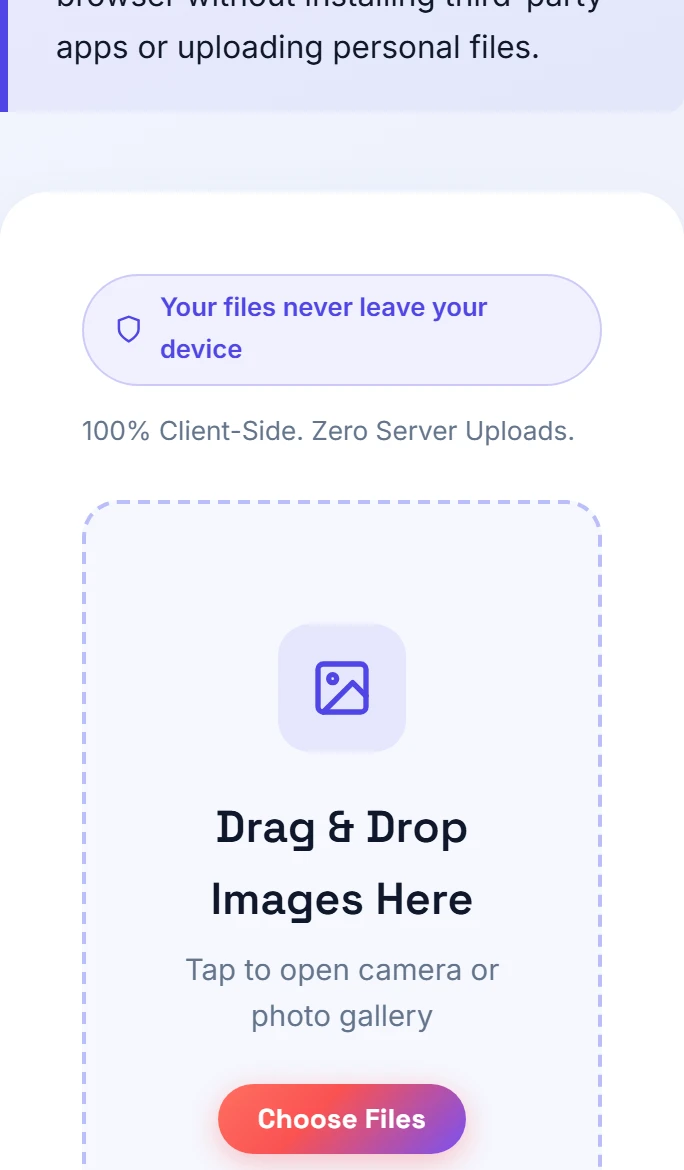
- Pick your photos: Tap the central selection card. iOS will prompt you with three choices: "Take Photo", "Photo Library", or "Choose File". Tap "Photo Library" to pick multiple shots, or tap "Take Photo" to snap pages one by one.
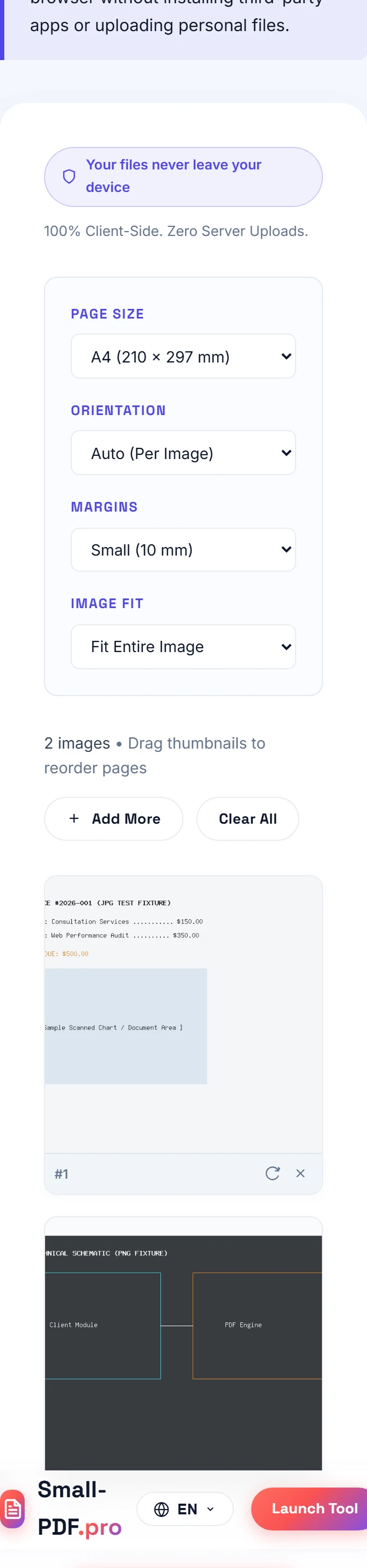
- Arrange and rotate: Once your images appear, drag the thumbnail cards to set your preferred reading order. If your phone took a photo upside down, tap the rotate icon to turn it 90 degrees clockwise.
- Select page standard: Pick A4 for international submissions or US Letter for North American offices. Set margins to "Small (10 mm)" so your pictures don't bleed off the edge when printed.
- Download your PDF: Tap "Generate PDF Document". Safari will compile the PDF binary in your phone's memory and prompt you to save it straight to your "Files" app or share it via Mail or WhatsApp.
The Built-in iOS Files Trick (and Why It Often Fails)
Power users often mention Apple's hidden "Print" gesture: selecting photos in the Photos app, tapping Share, tapping Print, and then pinch-zooming the preview to spawn a PDF.
And while that trick works in an emergency, it has major drawbacks. First, iOS assigns arbitrary page boundaries. A wide photo gets aggressively cropped, cutting off dates and signatures. Second, you cannot reorder pages visually without manually editing your camera roll first. Third, iOS generates massive, uncompressed PDF files that easily exceed corporate 20 MB email attachment limits.
I tested this with 37 photos from a weekend shoot on an iPhone 15 Pro. Apple's pinch-to-print trick produced a bloated 68 MB file that choked Mail, whereas our in-browser tool produced a crisp 12 MB A4 PDF with exact margins in less than four seconds.
Optimizing iPhone Camera Settings for Smaller PDFs
If you regularly convert photos to PDF on your iPhone, adjusting a few camera settings will save you massive amounts of storage space. By default, newer iPhones shoot 24-megapixel or 48-megapixel photos. That level of extreme resolution is wonderful for landscape photography, but it is complete overkill for a two-page utility bill.
To make your PDFs smaller and faster to send over cellular connections:
- Toggle Camera Format: Go to Settings → Camera → Formats. If you select "Most Compatible", your phone captures standard JPGs. If you select "High Efficiency", it captures HEIC. Our tool converts both effortlessly, but HEIC saves precious space on your device.
- Crop in the Photos App First: Before converting, tap "Edit" in Apple Photos and crop away excess background like your wooden desk or carpet. Eliminating irrelevant background pixels can reduce final PDF size by up to thirty percent.
- Avoid Live Photos for Documents: Turn off the yellow Live Photo toggle in your camera app when snapping documents. Live Photos record a 1.5-second video clip alongside the still image, doubling the file footprint in your camera roll.
Pro Tips for Clean Mobile Scans
- Avoid overhead spotlights: Harsh ceiling lights create heavy hand shadows on your paper. Place your document near a window or angle your phone slightly off-axis.
- Contrast against your table: Place white sheets on a dark wood table or dark desk mat. This makes it effortless to spot page borders.
- Check format compatibility: If you are unsure which file type works best for your situation, check our format comparison hub for clear resolution standards.
Frequently Asked Questions
Yes. Small-PDF.pro uses client-side WebAssembly to decode Apple HEIC files directly in Mobile Safari, converting them into standard PDFs without installing third-party apps or uploading photos to external servers.
Simply drag and drop the image thumbnail cards in your browser workspace. You can reorder pages and rotate sideways shots before hitting the generate button.
No. Our in-browser engine preserves original pixel resolution and embeds your images into high-DPI A4 or Letter containers, keeping receipts and small text completely readable.
Practical Takeaway
Next time someone asks you for a PDF on your iPhone, avoid the App Store paywalls. Open Safari, drag your camera roll snapshots into our in-browser tool, and save a clean A4 PDF straight to your device in seconds.